Cybersecurity
Passkeys vs Passwords: What Changes in 2026
Passkeys versus passwords in 2026: how the technology works, where it still fails, and a practical migration plan for people and small teams.
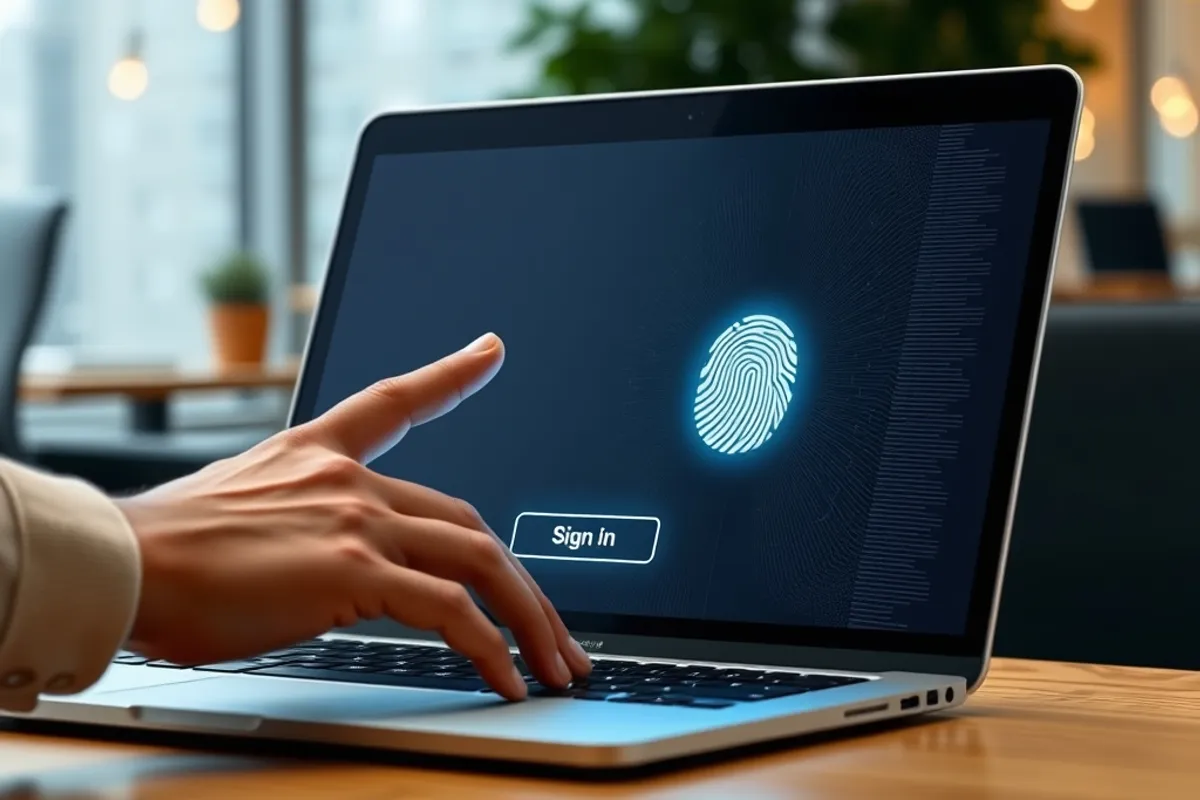
Passkeys replace the password with a cryptographic key held by your device. Instead of typing a secret that can be phished, reused or leaked, you approve a login with your face, fingerprint or device PIN. The server stores a public key that is useless to an attacker, and the private key never leaves your hardware.

How passkeys actually work
When you create a passkey, your device generates a key pair. The public half goes to the website; the private half stays in a secure enclave or password manager. To sign in, the site sends a challenge, your device signs it and the site verifies the signature. There is no shared secret to steal from the server and no code to read out to a caller.
Passkeys are bound to the website's domain, which is why they resist phishing: a lookalike domain gets a signature that will not verify. They can also sync across devices through a platform account or a password manager, which is convenient and creates a dependency worth understanding before you rely on it.
A passkey removes the password from the login. It does not remove the need for a recovery plan.
Where passkeys are better
For everyday logins, passkeys are faster and safer than passwords. There is nothing to remember, nothing to reuse and nothing to type into a fake page. On a phone, the experience is often a single biometric prompt, which is less friction than a password plus a one-time code.
For high-value accounts such as email, banking and cloud admin, the reduction in phishing risk is the main benefit. If your provider supports passkeys, enabling one is usually a better use of ten minutes than changing your password again.
Where they still fail
The weak point is recovery. If your only passkey lives on a phone that is lost, stolen or wiped, you need a second path back into the account. That path is often an email reset, which brings back the phishing risk you were trying to remove. Set up more than one device or a backup authenticator before you need it.
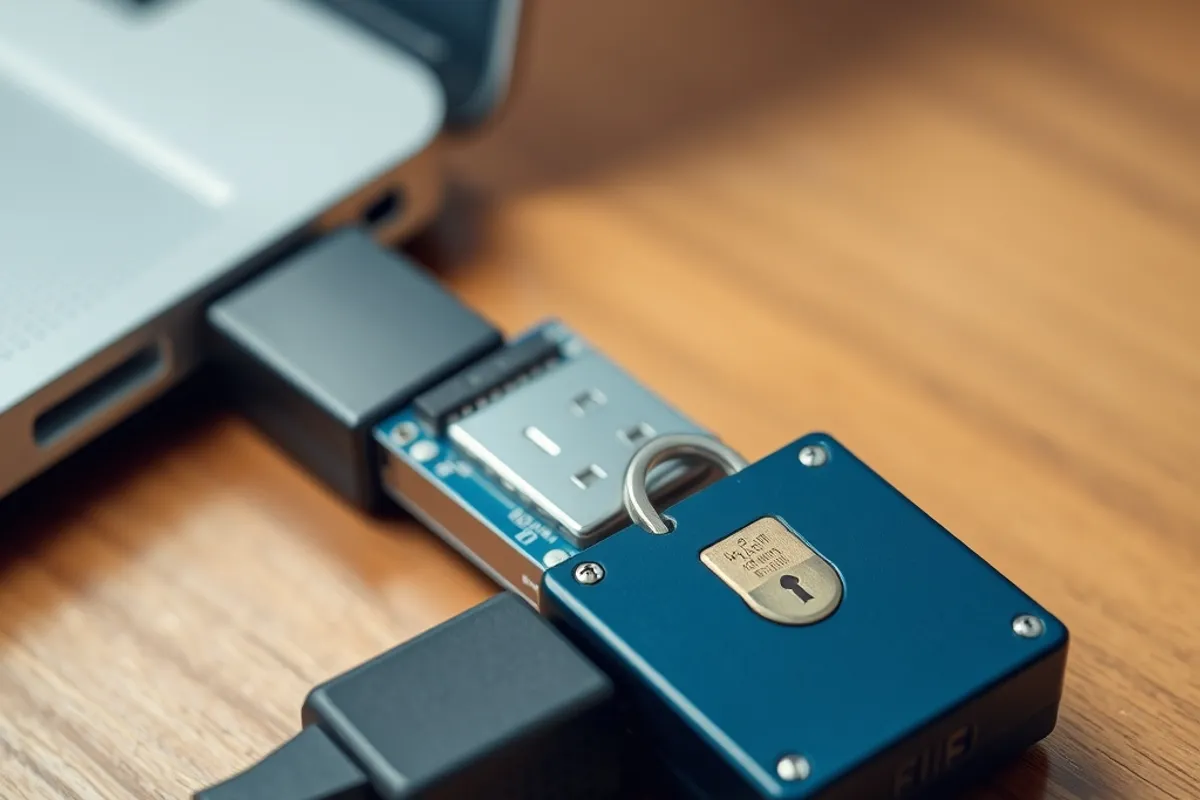
Register a passkey on at least two devices. Keep a recovery method that does not depend on one phone. Check whether your password manager syncs passkeys and how. Use a hardware security key for the most critical accounts. Test the recovery flow before you rely on it.
A practical migration plan
Start with the accounts that matter most and have the best support: email, then banking, then cloud admin. Add a passkey on your primary device, then add a second device or a hardware key. Keep the password as a fallback until you have tested recovery, then remove it only if the provider allows a passkey-only setup and you are comfortable with the trade-off.
For a small team, update the onboarding checklist and the offboarding checklist in the same week. A passkey that stays registered on a former employee's phone is an access problem, and it is easy to forget because there is no password to change. Shared inboxes need individual accounts with delegated access, not one key passed around.

What to tell your team
Explain three things: why the prompt appears, what to do if the device is lost and who to contact before removing a passkey. Keep the instructions short and store them where people can find them. Most support tickets come from uncertainty, not from the technology failing.
For the wider basics, read our small-business security checklist. For the developer side, see our small-team delivery guide.